Export data in InfoAsset Manager
Any referenced datasets can be downloaded from "Module downloads" in the module overview.
Export data in InfoAsset Manager
Step-by-step guide
Data can be exported from InfoAsset Manager in a variety of formats to be used in other software, such as InfoWorks ICM, AutoCAD, MapInfo, or ESRI ArcMap, among others.
Begin with a network open on the GeoPlan.
- From the Network menu, select Export to view the different methods and formats for data export.
- Select Open Data Export Center.
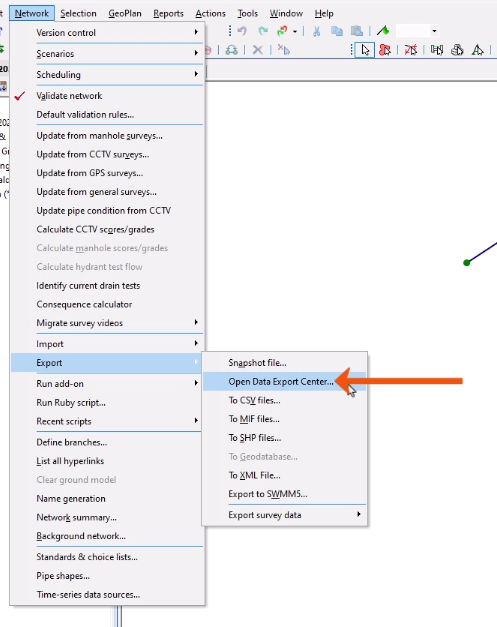
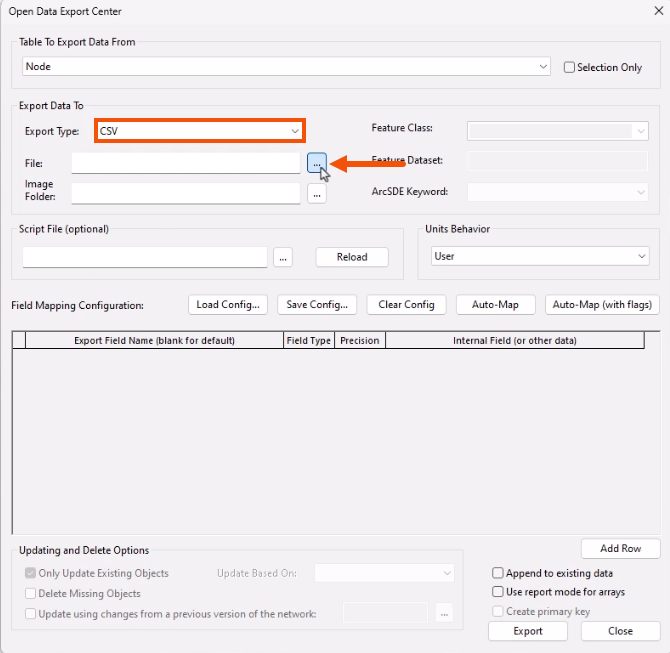
The ODEC interface is similar to the ODIC interface and allows the export process and format to be configured as needed.
For this example, export node data as a CSV, which can then be imported into a new network.
- In the Open Data Export Center dialog, for the Export Type, select CSV.
- Next to File, select Browse.
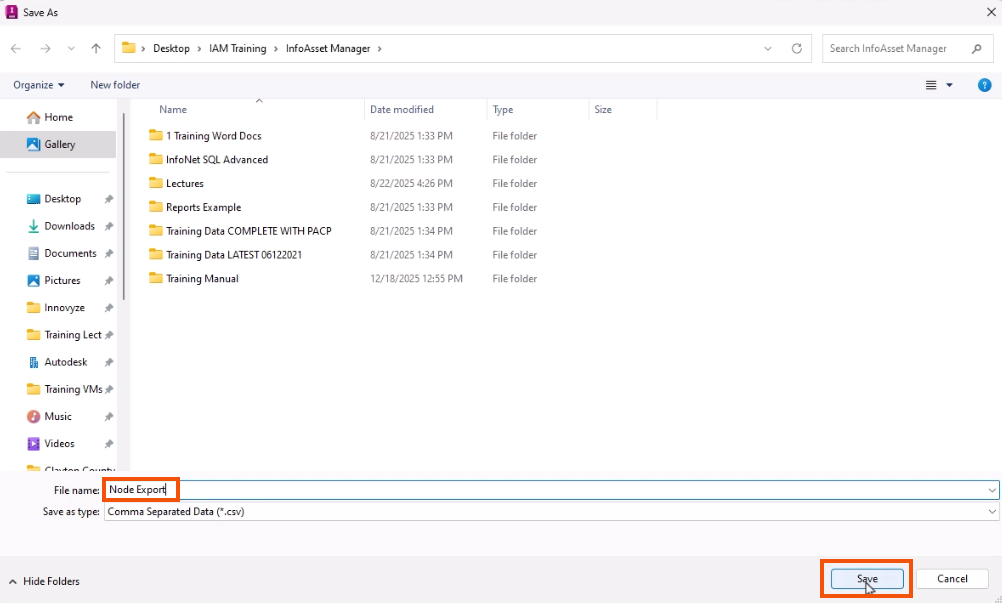
- In the Save As dialog, add a file name, such as “Node Export”.
- Click Save.
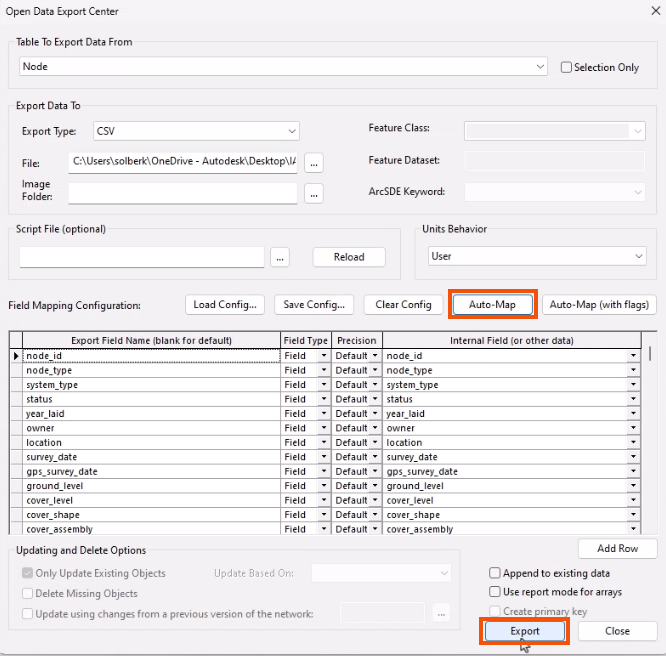
- Back in the ODEC, for the Field Mapping Configuration, select Auto-Map.
- Click Export.
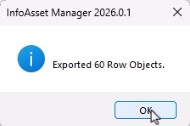
A popup reports the number of row objects exported.
Next, export pipe data to a shape file, which can be added as a background layer in a new network.
- In the Open Data Export Center dialog, for Table to Export Data From, select Pipe.
- Change the Export Type to Shape File.
- Click Browse and save the exported file with a name of “Pipe Export_BackgroundLayers”.
- Click Auto-Map.
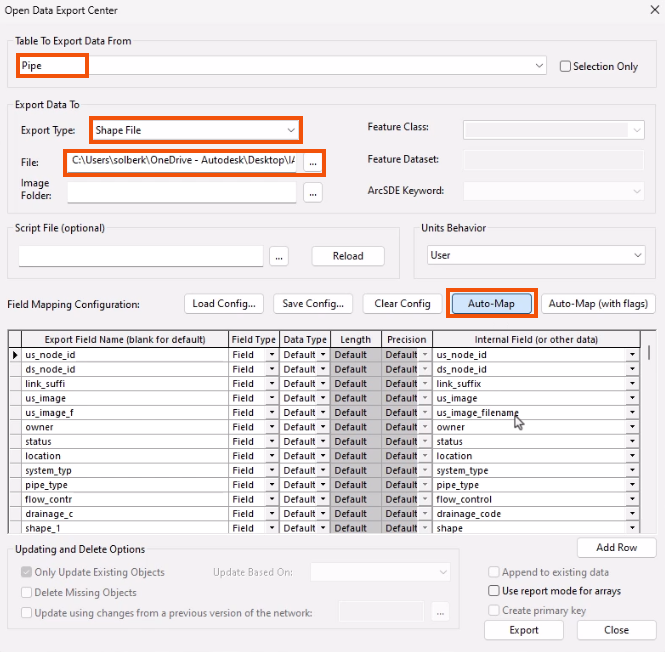
In the field mapping grid, exported fields can be customized using scripts or SQL expressions, as needed.
- Once all the ODEC settings are complete, click Export.